I have recently installed a new copy of Ubuntu 14.04 on my Dell M3800 which has Nvidia Quadro K1100M graphics card.
Later I also connected my external monitor via HDMI (HDMI to DVI connector). Then I started seeing sluggish screen performance on my laptop screen. By sluggish I mean that my keystrokes or actions seems to be always lagging. Funny enough this seems to happen only on my laptop screen, my external monitor works fine.
I have made sure to install & use Nvidia's proprietary drivers 331.38.
So I checked my Ssytem Settings > Displays. And it properly displays 2 screeens as seen below.
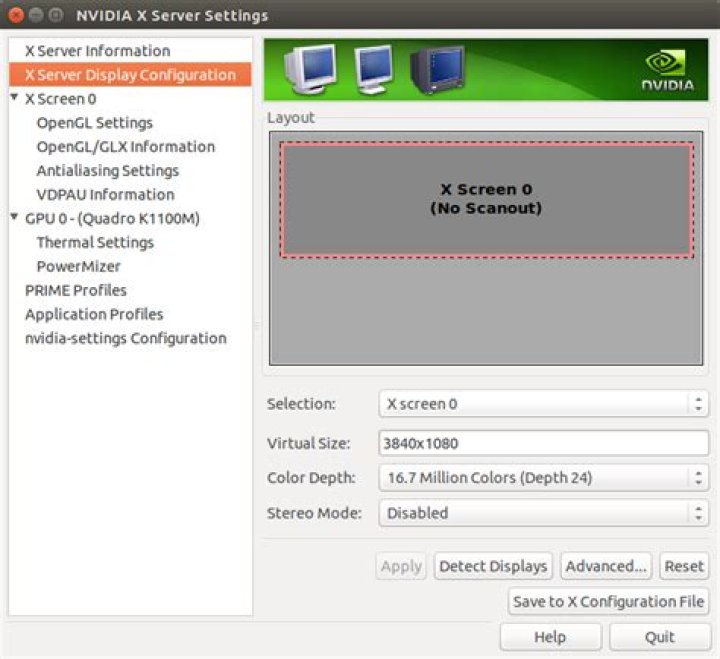
But then I went to Nvidia X Server settings & it displays just one screen with one big screen resolution as seen below.
I think this is causing my laptop to have sluggish performance because I am assuming that botht the external monitor & my laptop screen have a different screen refresh rate.
I am dumping xorg.conf & xandr output below,
# nvidia-xconfig: X configuration file generated by nvidia-xconfig # nvidia-xconfig: version 331.38 (buildmeister@swio-display-x64-rhel04-15) Wed Jan 8 19:53:14 PST 2014 Section "ServerLayout" Identifier "layout" Screen 0 "nvidia" 0 0 Inactive "intel" InputDevice "Keyboard0" "CoreKeyboard" InputDevice "Mouse0" "CorePointer" EndSection Section "InputDevice" # generated from default Identifier "Keyboard0" Driver "keyboard" EndSection Section "InputDevice" # generated from default Identifier "Mouse0" Driver "mouse" Option "Protocol" "auto" Option "Device" "/dev/psaux" Option "Emulate3Buttons" "no" Option "ZAxisMapping" "4 5" EndSection Section "Monitor" Identifier "Monitor0" VendorName "Unknown" ModelName "Unknown" HorizSync 28.0 - 33.0 VertRefresh 43.0 - 72.0 Option "DPMS" EndSection Section "Device" Identifier "intel" Driver "modesetting" BusID "PCI:0@0:2:0" EndSection Section "Device" Identifier "nvidia" Driver "nvidia" BusID "PCI:2@0:0:0" EndSection Section "Screen" Identifier "intel" Device "intel" Monitor "Monitor0" EndSection Section "Screen" Identifier "nvidia" Device "nvidia" Monitor "Monitor0" Option "AllowEmptyInitialConfiguration" "on" Option "ConstrainCursor" "off" SubSection "Display" Modes "nvidia-auto-select" EndSubSection EndSection xrandr output,
cdtank@cdtank-Dell-Precision-M3800:~/work$ xrandr Screen 0: minimum 8 x 8, current 3840 x 1080, maximum 16384 x 16384 eDP-1-0 connected 1920x1080+0+0 344mm x 193mm 1920x1080 60.0*+ 59.9 1680x1050 60.0 59.9 1600x1024 60.2 1400x1050 60.0 1280x1024 60.0 1440x900 59.9 1280x960 60.0 1360x768 59.8 60.0 1152x864 60.0 1024x768 60.0 60.0 960x720 60.0 928x696 60.1 896x672 60.0 960x600 60.0 960x540 60.0 800x600 60.0 60.3 56.2 840x525 60.0 59.9 800x512 60.2 700x525 60.0 640x512 60.0 720x450 59.9 640x480 60.0 59.9 680x384 59.8 60.0 576x432 60.1 512x384 60.0 400x300 60.3 56.3 320x240 60.1 VGA-1-0 disconnected HDMI-1-0 connected 1920x1080+1920+0 598mm x 336mm 1920x1080 60.0*+ 1600x1200 60.0 1680x1050 59.9 1400x1050 59.9 1600x900 60.0 1280x1024 75.0 60.0 1440x900 59.9 1280x960 60.0 1280x800 59.9 1152x864 75.0 1024x768 75.1 70.1 60.0 832x624 74.6 800x600 72.2 75.0 60.3 56.2 640x480 75.0 72.8 66.7 60.0 720x400 70.1 DisplayPort-1-0 disconnected HDMI-1-1 disconnected UPDATE After removing the xorg.conf & rebooting. Here is the contents of it.
Section "ServerLayout" Identifier "layout" Screen 0 "nvidia" Inactive "intel" EndSection Section "Device" Identifier "intel" Driver "modesetting" BusID "PCI:0@0:2:0" EndSection Section "Screen" Identifier "intel" Device "intel" EndSection Section "Device" Identifier "nvidia" Driver "nvidia" BusID "PCI:2@0:0:0" Option "ConstrainCursor" "off" EndSection Section "Screen" Identifier "nvidia" Device "nvidia" Option "AllowEmptyInitialConfiguration" "on" EndSection 11 Answers
I ran into basically this same issue, it turns out in my case (maybe yours as well), that this ends up being somewhat of a hardware issue with the shared graphics cards in laptops, where the intel (power saving) card is connected to the HDMI port and the nvidia (performance) card is not. The nvidia driver will then not work in a dual monitor setup since it defaults to the nvidia (performance) card. I don't get the design decision behind that (cost maybe?).
I found that the solution in my case was to either switch the default mode to power saving within the nvidia driver settings, or to switch to the nouveau driver (which seems to default to the power saving mode anyway). I could then use the second monitor when connected via the HDMI port.
Try switching to strictly using power saving mode and see if the dual monitor setup works though the system settings. If it does, then you know that you've got this quirky hardware issue. How the manufacturers solve this themselves in other OSes, and why is it not fixed in the Linux based drivers is beyond the scope of my knowledge.
But not all hope is lost. There maybe some other (better?) answers here [ Does Ubuntu 16.04 support hybrid graphics cards (bumblebee) ]. The current release (3.2.1) of bumblebee is rather old (2013) and I can't personally recommend installing it simply because I have not, but it seems that there are quite a few users that don't have issues with it. There is promise, however, of it's revival (checkout the develop branch on the Bumblebee Project githubs).
Whether you choose to take the bumblebee route or not, you should checkout the multi-monitor info on their wiki [ ], it's quite informative.
2I have this laptop and i use it with an external 4k screen connected via the thunderbolt(display port) socket. It works fine with both screens at 4k 60hz and i don't have an xorg.conf. I have noticed that the using HDMI port can slow things down a bit display port is much better.
I am using 16.04 which works great but i have not run 14.04 on this laptop but i used both the 15. releases stably as well.
I think the issue is that graphics driver is not the right one. I am using nvidia-364 from and using the updates from there.
Incidentally this laptop and the owc thunderbolt dock work really well.
4From : Just be sure not to have any /etc/X11/xorg.conf* files. Run this:
sudo rm -v /etc/X11/xorg.conf* Then rebooted again and I could log in having nvidia driver perfectly working.
1On every linux distribution I have used every time I have used, whenever I plug a HDMI cable to another monitor, I get a resolution change and the things you're reporting because the settings are configuring the resolution for your external monitor. However, this also affects your laptop because in order to set setting for the other monitor, it must also set them on your laptop first, so that the HDMI cable can broadcast what your laptop screen is showing to the other monitor. So in my opinion, there isn't a way to "fix" this.
For example, I might connect a monitor with a resolution of 1366x768 but I might have a laptop with a resolution of 1024x768. The settings will tweak the resolution setting and might make the laptop have the edges of the scree not show the Ubuntu menu bar. However, they have been tweaked so that the external monitor can see it properly.
the reason you dont see the internal display in nvidia-settings
you can set the settings for your internal display via ubuntu's System Settings --> Displays after doing the following (i had to do this as it got the resolution and something else wrong that messed up the layout on the internal display):
sudo apt-get install compizconfig-settings-manager compiz-plugins
How to get multiple displays working with docking station?
In CCSM go to "General Options" --> "Display Settings" and do the following: Un-check "Detect Outputs" In the Outputs array, set the resolutions of each of your screens. i had 1920x1080+0+0 as the only entry in which i additionally added 1920x1080+1920+0
screenshot of compiz settings manager display settings
after that i went to ubuntu's System Settings --> Displays and had set internal display's settings there.
1Check if the right driver is in use:
$ lspci -nnk | grep "VGA\|'Kern'\|3D\|Display" -A2
If it isn't blacklist the wrong driver:
$ sudo echo nouveau >> /etc/modprobe.d/blacklist.conf
reboot and look again which driver is in use.
If the right driver is in use and you have still the problem, then you need to configure the xorg.conf file.Here is a good wiki, how to configure the xorg.conf for two displays
1You could try set screen0="buildtin", and screen1="monitor1", and that is in xorg.conf, and you could use gedit from the terminal, and that is in this two sections here:
section monitor section screen and it might work fine this way.
Just go with the official NVidia drivers directly from NVidia! for your card, NVidia is offering 352.63 and use this guide to install it:
Regards
1Unfortunately this is the way TwinView Dual-Display Architecture works... It 's the way Nvidia found correct to give a direct way to a X session to support multiples monitors at the time.
You can try Xinerama but unfortunately you will not be able to activate compositing .
3This might be because both of your monitors work in 60+ hrz range. Try using xrandr to manually set them both to, say, 50, or better 40, and see if it helps. Most of the laptop graphic cards do not support 120+ hrz frequency which you would need for two monitors both having 60+.
Your problem may be with the NVidia drivers.
Try using the open source Nouveau drivers.
Go to the Additional Drivers page and select the "Open Source - Nouveau" option.
1