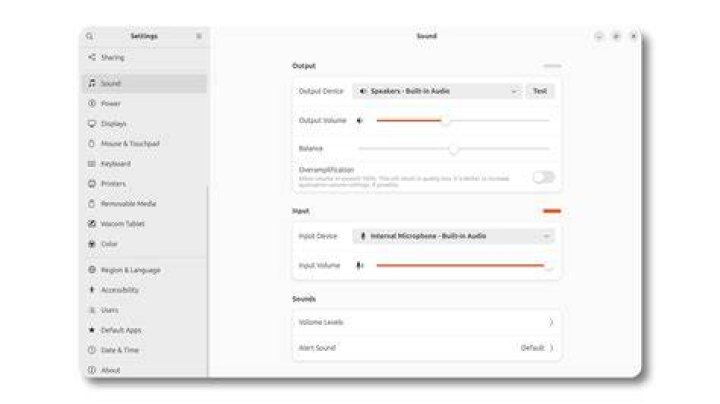

I'm trying to adjust resolution on my new MSI GT70 2OC. In settings, only one resolution is available: 1920x1080. This is fine, except that I need to decrease the resolution and make it more rectangular for the laptop to work well with my old PL-550 tablet.
Here's what I do:
cvt 1200 1000 60 # 1200x1000 59.91 Hz (CVT) hsync: 62.19 kHz; pclk: 99.50 MHz Modeline "1200x1000_60.00" 99.50 1200 1280 1400 1600 1000 1003 1013 1038 -hsync +vsync sudo xrandr --newmode "1200_1000_60" 99.50 1200 1280 1400 1600 1000 1003 1013 1038 -hsync +vsync xrandr: Failed to get size of gamma for output default How do I get past this step?
UPDATE Here's the output of xrandr:
xrandr: Failed to get size of gamma for output default Screen 0: minimum 1920 x 1080, current 1920 x 1080, maximum 1920 x 1080 default connected primary 1920x1080+0+0 0mm x 0mm 1920x1080 0.0* 6 Answers
I tried almost all the answers with xrandr in English version, and I always have the same error message xrandr: Failed to get size of gamma for output default.
Then, there is one solution in Chinese saved my life, I just want to share that.
open the file
sudo nano /etc/default/grub find the line
#GRUB_GFXMODE=640x480 edit 640x480 to your resolution eg: 1920x1080, remove the #
for example:
GRUB_GFXMODE=1920x1080 Update by the command
sudo update-grub Then reboot your computer.
sudo reboot You don't need sudo to register the new mode with xrandr, try without sudo. Then you'll have to apply the new resolution with:
xrandr --addmode <your_connection_type> 1200x1000_60.00 Where <your_connection_type> is usually VGA1, DP1 or HDMI1. Check the output of xrandr to know the exact name of the connected output.
If you have an nVidia or ATI GPU, have you tried changing your driver, either from proprietary to non-proprietary or vice versa?
My system:
~$ inxi -G Graphics: Card: NVIDIA C61 [GeForce 7025 / nForce 630a] X.Org: 1.15.1 drivers: nouveau (unloaded: fbdev,vesa) Resolution: 1920x1080@60.0hz GLX Renderer: Gallium 0.4 on NV4C GLX Version: 2.1 Mesa 10.1.3 Depending on what kernel/distribution I am running, sometimes the proprietary nVidia 304 driver works, on others, e.g. Bodhi 3.0, with the same setup, can fail to read properly the size of the screen and also fail to read the gamma.
You can try to set your output with the following line, which will at least fix your error report, but may not fix your output:
xrandr --output default --gamma 0:0:0 --mode 1200x1000 You may also want to install the inxi utility and post the output of inxi -G here for more help.
I ve been pulling my hair out with this issue for some time. In my case I am running Kali Linux as a Live CD in VirtualBox and want to change the screen resolution.
:~$ xrandr --newmode "1200x900_60.00" 88.50 1200 1272 1392 1584 900 903 907 934 -hsync +vsync Then check if the mode has been added:
:~$ xrandr Screen 0: minimum 64 x 64, current 640 x 480, maximum 16384 x 16384 VGA-0 connected 640x480+0+0 0mm x 0mm 640x480 60.0*+ 60.0* 1600x1200 60.0 1440x1050 60.0 1280x960 60.0 1024x768 60.0 800x600 60.0 1200x900_60.00 (0x1b2) 88.5MHz h: width 1200 start 1272 end 1392 total 1584 skew 0 clock 55.9KHz v: height 900 start 903 end 907 total 934 clock 59.8Hz Next assign it to the video output. This was listed in the previous step and in this case is VGA-0. With a LiveCD it may also be Default
:~$ xrandr --addmode VGA-0 1200x900_60.00 :~$ xrandr Screen 0: minimum 64 x 64, current 640 x 480, maximum 16384 x 16384 VGA-0 connected 640x480+0+0 0mm x 0mm 640x480 60.0*+ 60.0* 1600x1200 60.0 1440x1050 60.0 1280x960 60.0 1024x768 60.0 800x600 60.0 1200x900_60.00 59.8 If you get the error:
xrandr: Failed to get size of gamma for output default Then try restarting X Server:
:~$ killall Xorg And the new resolution now appears in the Monitor Setting resolution options.
Just install NVIDIA driver
sudo apt-get update sudo apt-get install inxi Then in the next command, replace 361 with the right driver. You can find this from the NVIDIA site or inxi -G.
sudo apt-get install nvidia-361 Once you update, run
sudo killlall Xorg I had this same problem after upgrading from 14.04 to 16.04.
It turns out I had a third-party video driver I'd installed years ago to better utilise my AMD Radeon video card - the driver was called fglrx-core.
Ubuntu had warned me the driver was out of date and no longer needed, so I uninstalled it and the orphaned dependencies (two of them identified by apt-get remove).
After a cold restart Ubuntu correctly detected my DVI monitor and gave me a new default resolution - magical really. :)
2